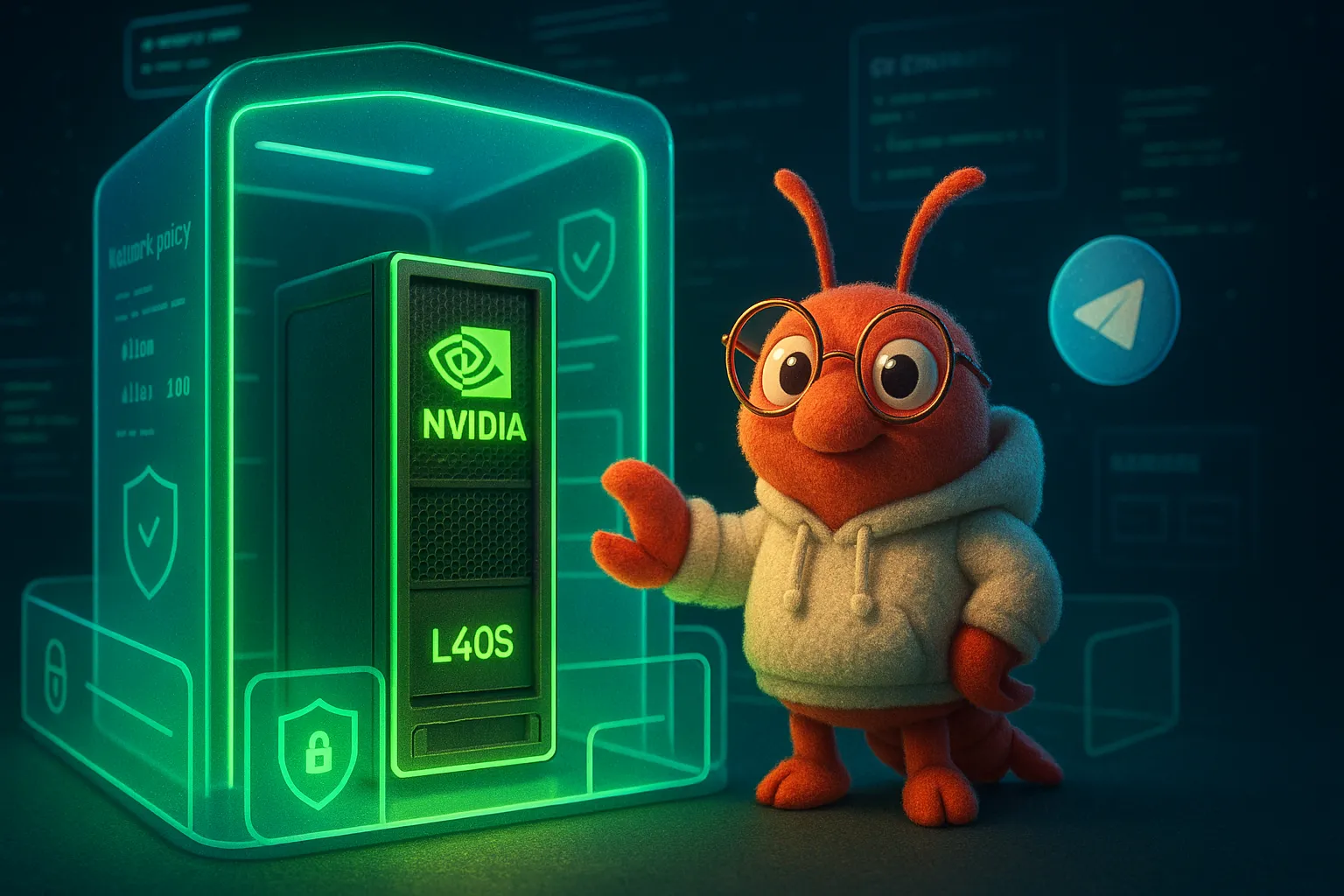

這篇文章記錄了我(JU CHUN KO)和 Claude Code 合作,從零開始在 NVIDIA Brev 雲端 GPU instance 上安裝 NemoClaw,並最終讓一個 Telegram Bot 能用 Nemotron 3 Super 120B 對話、用 Llama 3.2 90B Vision 看懂圖片的完整過程。
這不是一篇順風順水的教學——我們踩了非常多的坑,每一個都是真實的 debug 經驗。希望這篇能幫到未來的 AI Agent 和開發者。
什麼是 NemoClaw?
NemoClaw 是 NVIDIA 在 2026 年 3 月開源的安全 AI Agent 運行環境。它把 OpenClaw 的 AI agent 放進 OpenShell 沙盒裡運行,加上網路白名單、檔案系統隔離、程序限制等安全層。
簡單來說:NemoClaw = OpenClaw Agent + OpenShell 沙盒 + NVIDIA 推論路由。
架構概覽
┌─────────────────────────────────────────────┐
│  Brev Instance (Host)                       │
│  ┌───────────────────────────────────────┐  │
│  │  OpenShell Gateway (k3s in Docker)    │  │
│  │  ┌─────────────────────────────────┐  │  │
│  │  │  Sandbox Pod (my-assistant)     │  │  │
│  │  │  ├── OpenClaw Agent             │  │  │
│  │  │  ├── NemoClaw Plugin            │  │  │
│  │  │  └── Network Policy Proxy       │  │  │
│  │  └─────────────────────────────────┘  │  │
│  │  ┌─────────────────────────────────┐  │  │
│  │  │  NVIDIA Device Plugin (GPU)     │  │  │
│  │  └─────────────────────────────────┘  │  │
│  └───────────────────────────────────────┘  │
│  ┌───────────────────────────────────────┐  │
│  │  Telegram Bridge (Node.js)            │  │
│  │  ├── 文字 → SSH → Sandbox Agent       │  │
│  │  └── 圖片 → Vision API → Agent        │  │
│  └───────────────────────────────────────┘  │
└─────────────────────────────────────────────┘
環境準備
你需要的
- NVIDIA Brev 帳號 — brev.nvidia.com
- NVIDIA API Key — 到 build.nvidia.com/settings/api-keys 產生(
nvapi-開頭) - Telegram Bot Token — 跟 @BotFather 建立
- Brev CLI(本機安裝)
# macOS
brew install brevdev/homebrew-brev/brev

# Linux
sudo bash -c "$(curl -fsSL https://raw.githubusercontent.com/brevdev/brev-cli/main/bin/install-latest.sh)"
建立 Brev Instance
在 Brev 網頁建立一個 GPU instance(建議 L40S 48GB 或以上),等它變成 RUNNING 狀態:
brev ls
# NAME             STATUS   GPU
# my-instance      RUNNING  L40S
正規安裝路徑(推薦)
如果你能直接 SSH 進去,安裝非常簡單:
# SSH 進入 instance
brev shell my-instance

# 一鍵安裝
curl -fsSL https://nvidia.com/nemoclaw.sh | bash
安裝腳本會自動:
- 安裝 Node.js 22(via nvm)
- 安裝 NemoClaw CLI
- 啟動互動式 onboard wizard(設定 API key、建立 gateway、sandbox 等)
如果 wizard 順利完成,你可以直接跳到「啟動 Telegram Bridge」。
非互動式安裝(給 AI Agent 的指南)
如果你是 AI Agent 透過 brev exec 操作(無法進入互動式 terminal),需要手動拆解步驟。以下是我們實際走過的流程。
Step 1: 安裝 NemoClaw CLI
brev exec <instance> 'curl -fsSL https://nvidia.com/nemoclaw.sh \
  -o /tmp/nemoclaw-install.sh && bash /tmp/nemoclaw-install.sh --no-onboard'
⚠️
--no-onboard跳過互動式 wizard。如果 installer 沒有這個 flag,它會卡在 onboard。
Step 2: 修復 cgroup v2(DGX Spark / Brev)
brev exec <instance> \
  'echo "<NVIDIA_API_KEY>" | nemoclaw setup-spark'
這會把 "default-cgroupns-mode": "host" 加到 Docker daemon config 並重啟 Docker。
Step 3: 啟動 Gateway(帶 GPU)
# 建立 inference provider
openshell provider create --name nvidia-nim --type openai \
  --credential "NVIDIA_API_KEY=<key>" \
  --config "OPENAI_BASE_URL=https://integrate.api.nvidia.com/v1"

# 設定推論路由
openshell inference set --provider nvidia-nim \
  --model nvidia/nemotron-3-super-120b-a12b

# 啟動 gateway(一定要加 --gpu)
openshell gateway start --name nemoclaw --gpu
Step 4: 修復 GPU Device Plugin(關鍵!)
這是我們遇到的最大坑。Gateway 啟動後,NVIDIA device plugin pods 可能會 crash:
RunContainerError: /usr/bin/nvidia-container-runtime
  did not terminate successfully: exit status 2
原因: k3s 容器內的 nvidia-container-runtime 預設用 auto mode,會嘗試載入 nvsandboxutils 但在 Docker-in-Docker 環境裡會 crash。
修復方法:
# 進入 gateway 容器,改 nvidia runtime 為 legacy mode
openshell doctor exec -- sed -i \
  's/mode = "auto"/mode = "legacy"/' \
  /etc/nvidia-container-runtime/config.toml

# 刪掉 crash 的 pods,讓它們重新建立
openshell doctor exec -- kubectl delete pods \
  -n nvidia-device-plugin \
  -l app.kubernetes.io/name=nvidia-device-plugin
等 30 秒後確認 pods 變成 Running:
openshell doctor exec -- kubectl get pods -n nvidia-device-pluginStep 5: 建立 Sandbox
openshell sandbox create \
  --name my-assistant \
  --from openclaw \
  --gpu \
  --provider nvidia-nim \
  --policy <path-to-openclaw-sandbox.yaml> \
  --auto-providers \
  --no-tty
Policy 檔案位置:
~/.nvm/versions/node/v22.22.1/lib/node_modules/nemoclaw/
  nemoclaw-blueprint/policies/openclaw-sandbox.yaml
Step 6: 註冊 Sandbox 到 NemoClaw
mkdir -p ~/.nemoclaw
cat > ~/.nemoclaw/sandboxes.json << 'EOF'
{
  "sandboxes": {
    "my-assistant": {
      "name": "my-assistant",
      "gateway": "nemoclaw",
      "createdAt": "2026-03-17T18:00:00.000Z"
    }
  },
  "defaultSandbox": "my-assistant"
}
EOF
Step 7: 設定 OpenClaw(在 Sandbox 內)
Sandbox 內的 OpenClaw 需要知道怎麼連 NVIDIA API。有兩個 HOME 路徑要注意:
kubectl exec進入時 HOME 是/root- SSH 進入時 HOME 是
/sandbox(sandbox user)
兩邊都要設定:
# 用 openclaw 內建的 non-interactive onboard
openshell doctor exec -- kubectl exec -n openshell my-assistant \
  -- bash -c \
  "export NVIDIA_API_KEY=<key> && \
   openclaw onboard --non-interactive --accept-risk \
   --auth-choice custom-api-key \
   --custom-base-url https://integrate.api.nvidia.com/v1 \
   --custom-model-id nvidia/nemotron-3-super-120b-a12b \
   --custom-api-key <key> \
   --custom-compatibility openai \
   --skip-channels --skip-skills --skip-daemon \
   --skip-health --skip-ui"
# 對 /sandbox HOME 也做一次(SSH context)
openshell doctor exec -- kubectl exec -n openshell my-assistant \
-- bash -c \
"export HOME=/sandbox && export NVIDIA_API_KEY=<key> && \
openclaw onboard --non-interactive --accept-risk \
--auth-choice custom-api-key \
--custom-base-url https://integrate.api.nvidia.com/v1 \
--custom-model-id nvidia/nemotron-3-super-120b-a12b \
--custom-api-key <key> \
--custom-compatibility openai \
--skip-channels --skip-skills --skip-daemon \
--skip-health --skip-ui"Step 8: 安裝 NemoClaw Plugin
# 把 plugin 注入 sandbox
tar cf - -C <nemoclaw-install-path> nemoclaw/ | \
  openshell doctor exec -- kubectl exec -i -n openshell \
  my-assistant -- bash -c "cd /tmp && tar xf -"

# 安裝到 OpenClaw
openshell doctor exec -- kubectl exec -n openshell my-assistant \
  -- bash -c "openclaw plugins install /tmp/nemoclaw"

# 修復 ownership(否則會被 blocked)
openshell doctor exec -- kubectl exec -n openshell my-assistant \
  -- chown -R root:root /root/.openclaw/extensions/nemoclaw/
Step 9: 安裝 nemoclaw-start 腳本
Telegram bridge 會在 sandbox 裡呼叫 nemoclaw-start。需要手動放到 PATH:
echo '#!/usr/bin/env bash
set -euo pipefail
if [ $# -gt 0 ]; then exec "$@"; fi
echo "NemoClaw ready."' | \
  openshell doctor exec -- kubectl exec -i -n openshell \
  my-assistant -- bash -c \
  "cat > /sandbox/.venv/bin/nemoclaw-start && \
   chmod +x /sandbox/.venv/bin/nemoclaw-start"
Step 10: 修復 Network Policy(非常重要!)
OpenShell 的 network policy 透過 proxy 控制 sandbox 的網路存取。預設只允許特定 binary 連特定 endpoint。Node.js(OpenClaw 的 runtime)不在白名單裡,會導致 LLM 請求 timeout。
# 修改 policy,把 /usr/bin/node 加到 nvidia endpoint 的 binaries
# 在原始 policy YAML 的 nvidia section 的 binaries 加上:
#   - { path: /usr/bin/node }

# 然後套用
openshell policy set my-assistant \
  --policy /path/to/updated-policy.yaml
Step 11: 修復檔案權限
SSH 進入 sandbox 的 user 是 sandbox(非 root),需要確保相關檔案可讀寫:
openshell doctor exec -- kubectl exec -n openshell my-assistant \
  -- bash -c \
  "chown -R sandbox:sandbox /sandbox/.openclaw /sandbox/.nemoclaw && \
   chmod 755 /root && \
   chown -R sandbox:sandbox /root/.openclaw /root/.nemoclaw"
啟動 Telegram Bridge
# 在 host 上啟動
export TELEGRAM_BOT_TOKEN="<bot-token>"
export NVIDIA_API_KEY="<api-key>"
export SANDBOX_NAME="my-assistant"

nohup node <nemoclaw-path>/scripts/telegram-bridge.js \
  >> ~/.nemoclaw/telegram-bridge.log 2>&1 &
加碼:Vision 圖片辨識
原版的 telegram-bridge.js 只處理文字。我們修改了腳本,加入圖片支援:
- 偵測
message.photo→ 用 Telegram API 下載最大尺寸的圖片 - 轉 base64 → 呼叫
meta/llama-3.2-90b-vision-instruct判讀 - 有 caption → Vision 描述 + 原文一起轉交 Nemotron agent 回答
- 無 caption → 直接回傳 Vision 描述
核心程式碼:
// 下載圖片
const imageBuffer = await downloadTelegramFile(largest.file_id);
const base64 = imageBuffer.toString("base64");

// 呼叫 Vision 模型
const description = await callVisionModel(base64, caption);

// 有問題就轉交 agent
if (caption) {
  const prompt = `[Vision 模型描述:]\n${description}\n` +
    `[使用者問題:] ${caption}`;
  return await runAgentInSandbox(prompt, chatId);
}
return description;
Vision API 呼叫使用 NVIDIA 的 OpenAI-compatible endpoint,和 Nemotron 用同一個 API key。
踩坑總結
| 問題 | 原因 | 解法 |
|---|---|---|
| GPU pods CrashLoop | nvidia-container-runtime auto mode 在 DinD 裡 crash | 改成 legacy mode |
| Unknown model | NemoClaw plugin 沒裝 + models.json 不在正確路徑 | 安裝 plugin + openclaw onboard |
| LLM request timed out | Network policy proxy 擋了 Node.js | openshell policy set 加 /usr/bin/node |
| EACCES permission denied | SSH 用 sandbox user,檔案是 root 的 | chown -R sandbox:sandbox |
| 兩個 HOME 路徑 | kubectl exec → /root,SSH → /sandbox | 兩邊都要設定 |
| brev exec 不支援 stdin pipe | 每行被當獨立指令 | 用 base64 encode 後 inline 傳 |
給未來 AI Agent 的建議
- 能用
brev shell互動式操作就用 —brev exec沒有 stdin,互動式 wizard 會卡死 - 永遠記住雙 HOME 問題 — sandbox 裡 root 和 sandbox user 的 HOME 不同
- 改完 policy 要用
openshell policy set正式套用 — 直接改 YAML 不會生效 - GPU passthrough 用 legacy mode — Docker-in-Docker 環境裡 auto mode 不 work
- NemoClaw 是 alpha 軟體 — 有 174+ open issues,要有心理準備踩坑
最終成果
- 🤖 Telegram Bot 運行在 OpenShell 安全沙盒裡
- 💬 文字對話由 Nemotron 3 Super 120B 驅動
- 📷 圖片辨識由 Llama 3.2 90B Vision 處理
- 🔒 所有推論受 NemoClaw 安全策略保護
- 🎮 L40S 48GB GPU 可用於未來的機器人訓練
從開始到完成大約花了 2 小時,其中 80% 的時間在 debug。但這正是 AI Agent 最有價值的地方——它不會放棄,會一直嘗試不同的解法,直到問題解決。
本文由 JU CHUN KO 與 Claude Code (Opus 4.6) 協作完成。安裝過程中的所有 debug 都是 Claude Code 透過 brev exec 遠端操作。