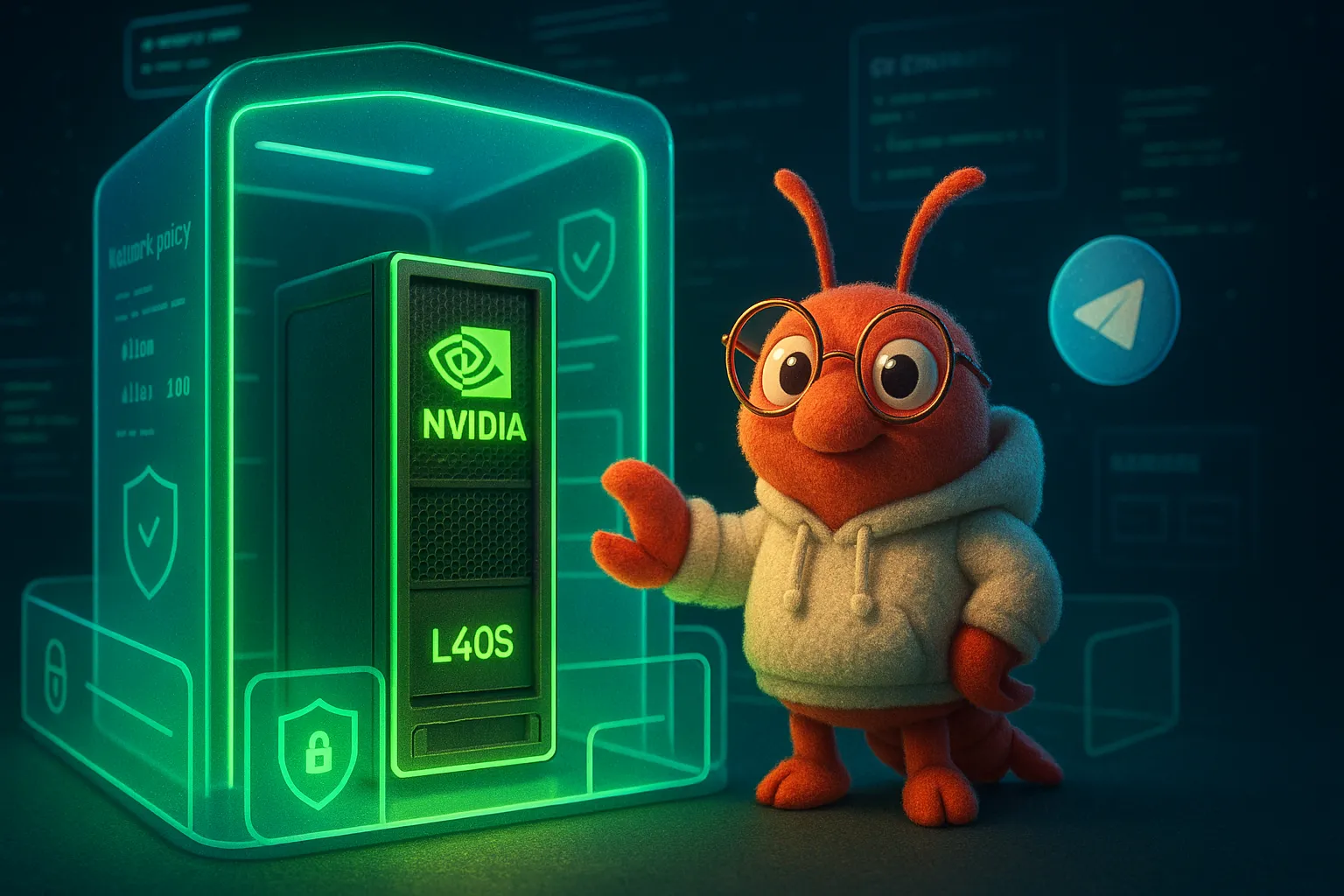
From Zero to Telegram Bot: The Complete Guide to Installing NemoClaw on NVIDIA Brev

This post documents how I (JU CHUN KO) collaborated with Claude Code to install NemoClaw from scratch on an NVIDIA Brev cloud GPU instance — ultimately creating a Telegram Bot powered by Nemotron 3 Super 120B for conversation and Llama 3.2 90B Vision for image understanding.
This is not a smooth tutorial — we hit countless pitfalls, and every single one is real debugging experience. I hope this helps future AI Agents and developers.
What is NemoClaw?
NemoClaw is NVIDIA’s open-source secure AI Agent runtime, released in March 2026. It runs OpenClaw AI agents inside OpenShell sandboxes, adding network allowlists, filesystem isolation, and process restrictions.
In short: NemoClaw = OpenClaw Agent + OpenShell Sandbox + NVIDIA Inference Routing.
Architecture Overview
┌─────────────────────────────────────────────┐
│  Brev Instance (Host)                       │
│  ┌───────────────────────────────────────┐  │
│  │  OpenShell Gateway (k3s in Docker)    │  │
│  │  ┌─────────────────────────────────┐  │  │
│  │  │  Sandbox Pod (my-assistant)     │  │  │
│  │  │  ├── OpenClaw Agent             │  │  │
│  │  │  ├── NemoClaw Plugin            │  │  │
│  │  │  └── Network Policy Proxy       │  │  │
│  │  └─────────────────────────────────┘  │  │
│  │  ┌─────────────────────────────────┐  │  │
│  │  │  NVIDIA Device Plugin (GPU)     │  │  │
│  │  └─────────────────────────────────┘  │  │
│  └───────────────────────────────────────┘  │
│  ┌───────────────────────────────────────┐  │
│  │  Telegram Bridge (Node.js)            │  │
│  │  ├── Text → SSH → Sandbox Agent       │  │
│  │  └── Image → Vision API → Agent       │  │
│  └───────────────────────────────────────┘  │
└─────────────────────────────────────────────┘
Prerequisites
What You Need
- NVIDIA Brev account — brev.nvidia.com
- NVIDIA API Key — generate at build.nvidia.com/settings/api-keys (starts with
nvapi-) - Telegram Bot Token — create via @BotFather
- Brev CLI (install locally)
# macOS
brew install brevdev/homebrew-brev/brev

# Linux
sudo bash -c "$(curl -fsSL https://raw.githubusercontent.com/brevdev/brev-cli/main/bin/install-latest.sh)"
Create a Brev Instance
Create a GPU instance on the Brev dashboard (L40S 48GB or above recommended), wait for RUNNING status:
brev ls
# NAME             STATUS   GPU
# my-instance      RUNNING  L40S
Standard Installation (Recommended)
If you can SSH in directly, installation is straightforward:
# SSH into the instance
brev shell my-instance

# One-line install
curl -fsSL https://nvidia.com/nemoclaw.sh | bash
The install script will automatically:
- Install Node.js 22 (via nvm)
- Install the NemoClaw CLI
- Launch the interactive onboard wizard (API key setup, gateway creation, sandbox, etc.)
If the wizard completes successfully, skip ahead to “Starting the Telegram Bridge”.
Non-Interactive Installation (Guide for AI Agents)
If you’re an AI Agent operating via brev exec (no interactive terminal), you’ll need to manually decompose the steps. Here’s the actual process we followed.
Step 1: Install NemoClaw CLI
brev exec <instance> 'curl -fsSL https://nvidia.com/nemoclaw.sh \
  -o /tmp/nemoclaw-install.sh && bash /tmp/nemoclaw-install.sh --no-onboard'
⚠️
--no-onboardskips the interactive wizard. Without this flag, the installer will hang waiting for input.
Step 2: Fix cgroup v2 (DGX Spark / Brev)
brev exec <instance> \
  'echo "<NVIDIA_API_KEY>" | nemoclaw setup-spark'
This adds "default-cgroupns-mode": "host" to Docker daemon config and restarts Docker.
Step 3: Start Gateway (with GPU)
# Create inference provider
openshell provider create --name nvidia-nim --type openai \
  --credential "NVIDIA_API_KEY=<key>" \
  --config "OPENAI_BASE_URL=https://integrate.api.nvidia.com/v1"

# Set inference routing
openshell inference set --provider nvidia-nim \
  --model nvidia/nemotron-3-super-120b-a12b

# Start gateway (must include --gpu)
openshell gateway start --name nemoclaw --gpu
Step 4: Fix GPU Device Plugin (Critical!)
This was the biggest pitfall. After starting the gateway, NVIDIA device plugin pods may crash:
RunContainerError: /usr/bin/nvidia-container-runtime
  did not terminate successfully: exit status 2
Cause: nvidia-container-runtime inside the k3s container defaults to auto mode, which tries to load nvsandboxutils — but crashes in Docker-in-Docker environments.
Fix:
# Enter gateway container, switch nvidia runtime to legacy mode
openshell doctor exec -- sed -i \
  's/mode = "auto"/mode = "legacy"/' \
  /etc/nvidia-container-runtime/config.toml

# Delete crashed pods to force recreation
openshell doctor exec -- kubectl delete pods \
  -n nvidia-device-plugin \
  -l app.kubernetes.io/name=nvidia-device-plugin
Wait 30 seconds, then verify pods are Running:
openshell doctor exec -- kubectl get pods -n nvidia-device-pluginStep 5: Create Sandbox
openshell sandbox create \
  --name my-assistant \
  --from openclaw \
  --gpu \
  --provider nvidia-nim \
  --policy <path-to-openclaw-sandbox.yaml> \
  --auto-providers \
  --no-tty
Policy file location:
~/.nvm/versions/node/v22.22.1/lib/node_modules/nemoclaw/
  nemoclaw-blueprint/policies/openclaw-sandbox.yaml
Step 6: Register Sandbox with NemoClaw
mkdir -p ~/.nemoclaw
cat > ~/.nemoclaw/sandboxes.json << 'EOF'
{
  "sandboxes": {
    "my-assistant": {
      "name": "my-assistant",
      "gateway": "nemoclaw",
      "createdAt": "2026-03-17T18:00:00.000Z"
    }
  },
  "defaultSandbox": "my-assistant"
}
EOF
Step 7: Configure OpenClaw (Inside Sandbox)
The OpenClaw instance inside the sandbox needs to know how to connect to NVIDIA’s API. Watch out for two different HOME paths:
kubectl execentry → HOME is/root- SSH entry → HOME is
/sandbox(sandbox user)
Configure both:
# Non-interactive onboard for /root HOME
openshell doctor exec -- kubectl exec -n openshell my-assistant \
  -- bash -c \
  "export NVIDIA_API_KEY=<key> && \
   openclaw onboard --non-interactive --accept-risk \
   --auth-choice custom-api-key \
   --custom-base-url https://integrate.api.nvidia.com/v1 \
   --custom-model-id nvidia/nemotron-3-super-120b-a12b \
   --custom-api-key <key> \
   --custom-compatibility openai \
   --skip-channels --skip-skills --skip-daemon \
   --skip-health --skip-ui"
# Same for /sandbox HOME (SSH context)
openshell doctor exec -- kubectl exec -n openshell my-assistant \
-- bash -c \
"export HOME=/sandbox && export NVIDIA_API_KEY=<key> && \
openclaw onboard --non-interactive --accept-risk \
--auth-choice custom-api-key \
--custom-base-url https://integrate.api.nvidia.com/v1 \
--custom-model-id nvidia/nemotron-3-super-120b-a12b \
--custom-api-key <key> \
--custom-compatibility openai \
--skip-channels --skip-skills --skip-daemon \
--skip-health --skip-ui"Step 8: Install NemoClaw Plugin
# Inject plugin into sandbox
tar cf - -C <nemoclaw-install-path> nemoclaw/ | \
  openshell doctor exec -- kubectl exec -i -n openshell \
  my-assistant -- bash -c "cd /tmp && tar xf -"

# Install into OpenClaw
openshell doctor exec -- kubectl exec -n openshell my-assistant \
  -- bash -c "openclaw plugins install /tmp/nemoclaw"

# Fix ownership (or it gets blocked)
openshell doctor exec -- kubectl exec -n openshell my-assistant \
  -- chown -R root:root /root/.openclaw/extensions/nemoclaw/
Step 9: Install nemoclaw-start Script
The Telegram bridge calls nemoclaw-start inside the sandbox. It needs to be in PATH:
echo '#!/usr/bin/env bash
set -euo pipefail
if [ $# -gt 0 ]; then exec "$@"; fi
echo "NemoClaw ready."' | \
  openshell doctor exec -- kubectl exec -i -n openshell \
  my-assistant -- bash -c \
  "cat > /sandbox/.venv/bin/nemoclaw-start && \
   chmod +x /sandbox/.venv/bin/nemoclaw-start"
Step 10: Fix Network Policy (Critical!)
OpenShell’s network policy controls sandbox network access through a proxy. Only specific binaries are allowed to connect to specific endpoints by default. Node.js (OpenClaw’s runtime) isn’t on the allowlist, causing LLM request timeouts.
# Add /usr/bin/node to the nvidia endpoint binaries
# In the policy YAML's nvidia section, add:
#   - { path: /usr/bin/node }

# Then apply
openshell policy set my-assistant \
  --policy /path/to/updated-policy.yaml
Step 11: Fix File Permissions
SSH into the sandbox uses the sandbox user (not root). Ensure relevant files are readable/writable:
openshell doctor exec -- kubectl exec -n openshell my-assistant \
  -- bash -c \
  "chown -R sandbox:sandbox /sandbox/.openclaw /sandbox/.nemoclaw && \
   chmod 755 /root && \
   chown -R sandbox:sandbox /root/.openclaw /root/.nemoclaw"
Starting the Telegram Bridge
# Start on the host
export TELEGRAM_BOT_TOKEN="<bot-token>"
export NVIDIA_API_KEY="<api-key>"
export SANDBOX_NAME="my-assistant"

nohup node <nemoclaw-path>/scripts/telegram-bridge.js \
  >> ~/.nemoclaw/telegram-bridge.log 2>&1 &
Bonus: Vision Image Recognition
The original telegram-bridge.js only handles text. We modified it to add image support:
- Detect
message.photo→ download the largest size via Telegram API - Convert to base64 → call
meta/llama-3.2-90b-vision-instructfor analysis - With caption → Vision description + original text forwarded to Nemotron agent
- Without caption → return Vision description directly
Core code:
// Download image
const imageBuffer = await downloadTelegramFile(largest.file_id);
const base64 = imageBuffer.toString("base64");

// Call Vision model
const description = await callVisionModel(base64, caption);

// Forward to agent if there's a question
if (caption) {
  const prompt = `[Vision description:]\n${description}\n` +
    `[User question:] ${caption}`;
  return await runAgentInSandbox(prompt, chatId);
}
return description;
The Vision API uses NVIDIA’s OpenAI-compatible endpoint, sharing the same API key as Nemotron.
Pitfall Summary
| Problem | Cause | Solution |
|---|---|---|
| GPU pods CrashLoop | nvidia-container-runtime auto mode crashes in DinD | Switch to legacy mode |
| Unknown model | NemoClaw plugin not installed + models.json missing | Install plugin + openclaw onboard |
| LLM request timed out | Network policy proxy blocks Node.js | openshell policy set — add /usr/bin/node |
| EACCES permission denied | SSH uses sandbox user, files owned by root | chown -R sandbox:sandbox |
| Two HOME paths | kubectl exec → /root, SSH → /sandbox | Configure both |
| brev exec no stdin pipe | Each line treated as separate command | Base64 encode and inline |
Advice for Future AI Agents
- Use
brev shellinteractive mode when possible —brev exechas no stdin, interactive wizards will hang - Always remember the dual HOME problem — root and sandbox user have different HOME paths inside the sandbox
- Use
openshell policy setto apply policy changes — editing the YAML directly won’t take effect - Use legacy mode for GPU passthrough — auto mode doesn’t work in Docker-in-Docker
- NemoClaw is alpha software — 174+ open issues, expect to debug
Final Result
- 🤖 Telegram Bot running inside OpenShell secure sandbox
- 💬 Text conversations powered by Nemotron 3 Super 120B
- 📷 Image recognition powered by Llama 3.2 90B Vision
- 🔒 All inference protected by NemoClaw security policies
- 🎮 L40S 48GB GPU available for future training
Start to finish took about 2 hours, with 80% of the time spent debugging. But that’s exactly where AI Agents are most valuable — they don’t give up, and keep trying different approaches until the problem is solved.
This post was co-authored by JU CHUN KO and Claude Code (Opus 4.6). All debugging during installation was performed by Claude Code remotely via brev exec.